

How to auto-delete your YouTube history

Filed under:
- Policy
- How-to
- Reviews
How to auto-delete your YouTube history
Keep your viewing habits private
Online privacy — or the lack thereof — has become a prominent issue. As a result, more and more services are adding features that speak to their users’ privacy concerns. If you’re a YouTube viewer (and who isn’t these days?), one of these concerns is probably your viewing history, which can tell marketers and other third parties more about you than you probably want them to know.
One way to prevent that type of intrusion is to delete that history. While you could previously delete your history manually (see below), Google has recently made the process automatic so you no longer have to remind yourself to perform the task regularly.
To set your YouTube account to automatically delete your history:
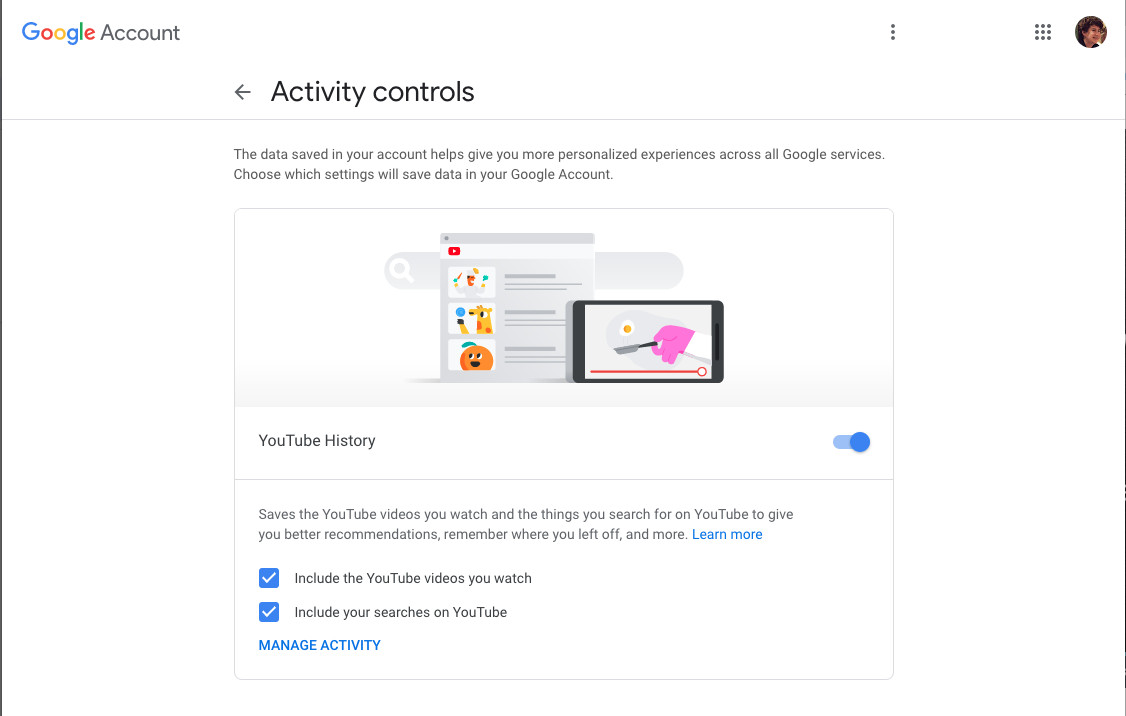
- Go to the Activity controls for your YouTube history. You can either follow this link to get there directly, or you can get started from your main Google account page. Find and click on the “Data & personalizations” tab, then “YouTube history” > “Manage activity.”
- Under YouTube History, you’ll see two boxes. The right-hand box helps you determine if and when your history of YouTube viewing and searching will be deleted. If you’ve never been on this page before, it will probably say “Keeping activity until you delete it manually.” Click just below that on the link that reads “Choose to delete automatically.”
- You can select to have Google delete your YouTube history after three months or after 18 months. Click on the option you prefer.
- Confirm your preference. Google will tell you at this point if you have anything that will be deleted immediately (because it’s older than three or 18 months).
And you’re done!
Incidentally, if you’d rather simplify things and not save your history at all, you can do that as well. Start from the YouTube History page and look at the left-hand box; it will say whether your YouTube history is on or off. If it’s on and you want it to be off:
- Click on “Change setting”
- You’ll see two checkboxes, one that says “Include the YouTube videos you watch” and the other that says “Includes your searches on YouTube.” If you uncheck either, you will pause the collection of that particular history.
- If you want to pause both, move the toggle above them to the “off” position.

Finally, if you want to just get rid of your entire viewing history right now:
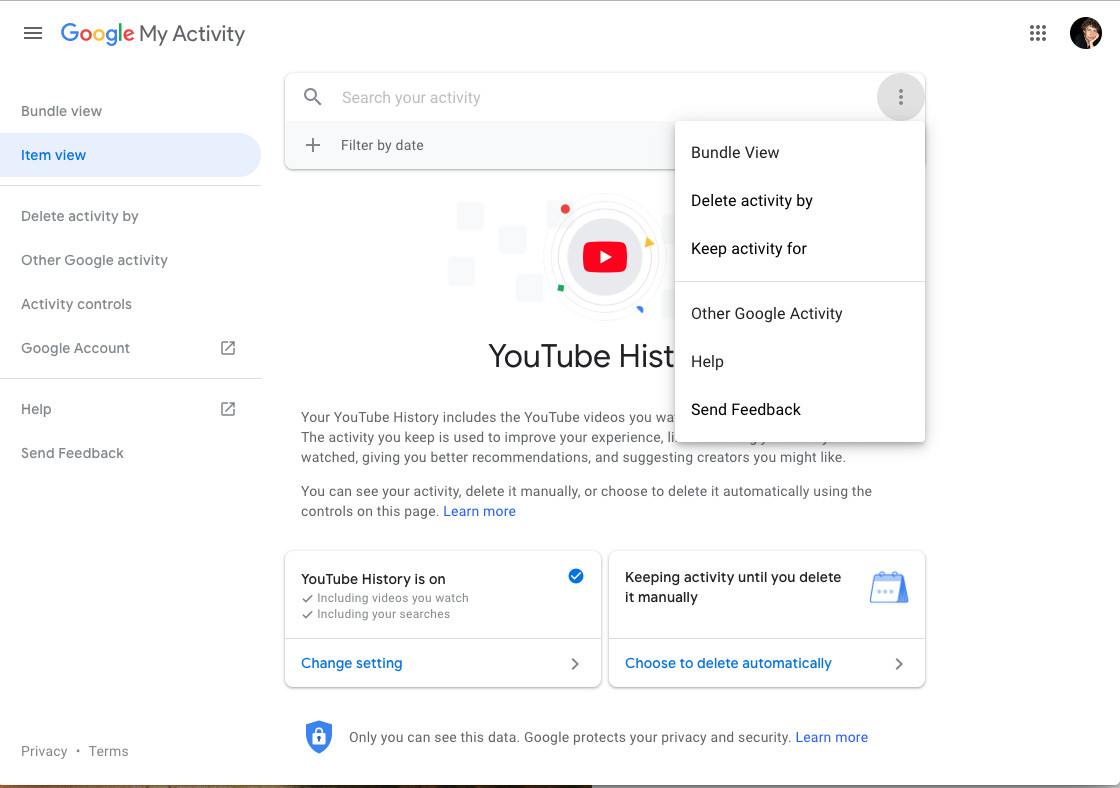
- On the YouTube History page, click on the three dots on the right side of the top search box.
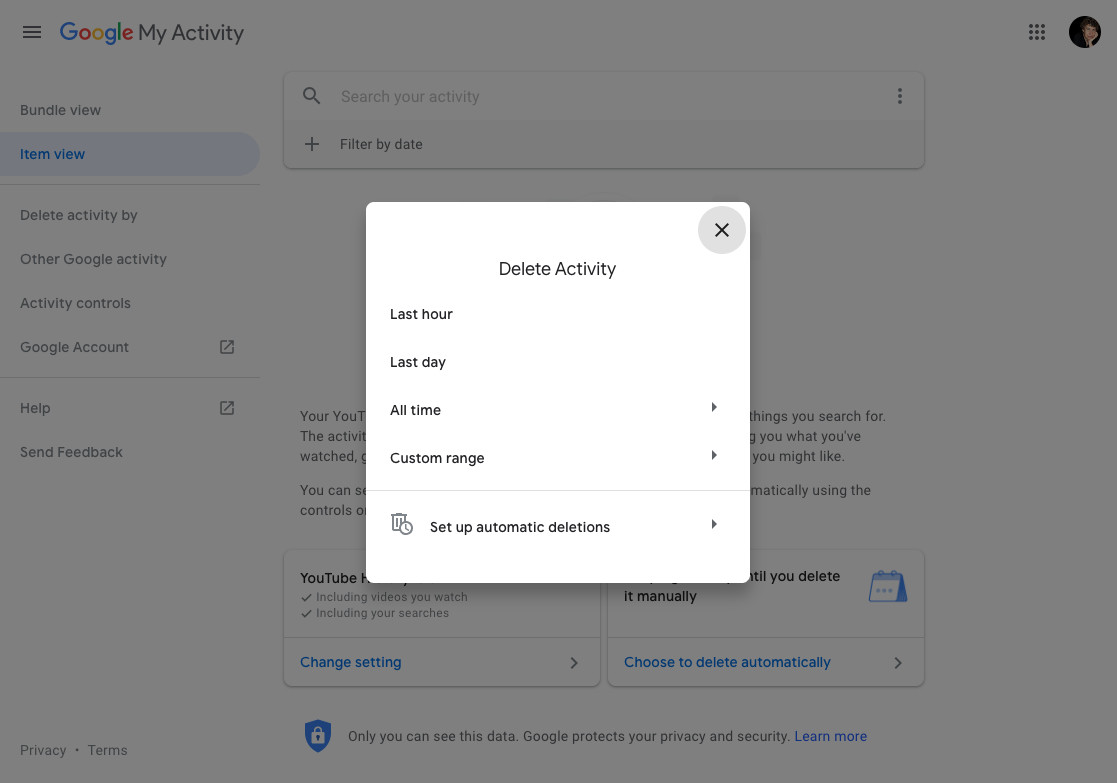
- Click on the link “Delete activity by”
- Delete your activity for the last hour, the last day, for all time, or within a custom range. There is also a link that will take you to the same automatic delete choices that we described earlier.
Vox Media has affiliate partnerships. These do not influence editorial content, though Vox Media may earn commissions for products purchased via affiliate links. For more information, see our ethics policy.